Media Codec Scanner guide
The video plays sound but no picture. Or a drive is full of old clips and you can't tell what's in them. The answer is inside each file: the codec, the resolution, the audio tracks.
This guide shows how to read all of it, for a whole folder at once. Press F1 inside Media Codec Scanner any time for the shortcut list.
1. Install
Download the installer and run it. Media Codec Scanner isn't code-signed, so Windows may show a caution prompt: choose Keep, then More info and Run anyway.
It installs to Program Files, so Windows asks for permission to make changes. Tick Create a desktop shortcut if you want one.
2. Scan files and folders
Click Scan folder (or press Ctrl + O) and pick a folder. To scan a few files instead, use File › Scan files…, or drag files and folders straight onto the window.
File › Include subfolders decides whether a folder scan also looks inside every folder below it. It is on by default.
In a folder, only media files are analyzed: video and audio types such as MP4, MKV, WebM, AVI, MOV, MPEG-TS, MP3, FLAC, WAV and many more. You can change the list in Options. A file you pick or drop directly is always analyzed, whatever its extension.
A progress bar shows how far along the scan is, with the file being read underneath. Cancel stops it. File › Rescan (F5) runs the last scan again, which is handy after you've added or changed files.
3. Read the results
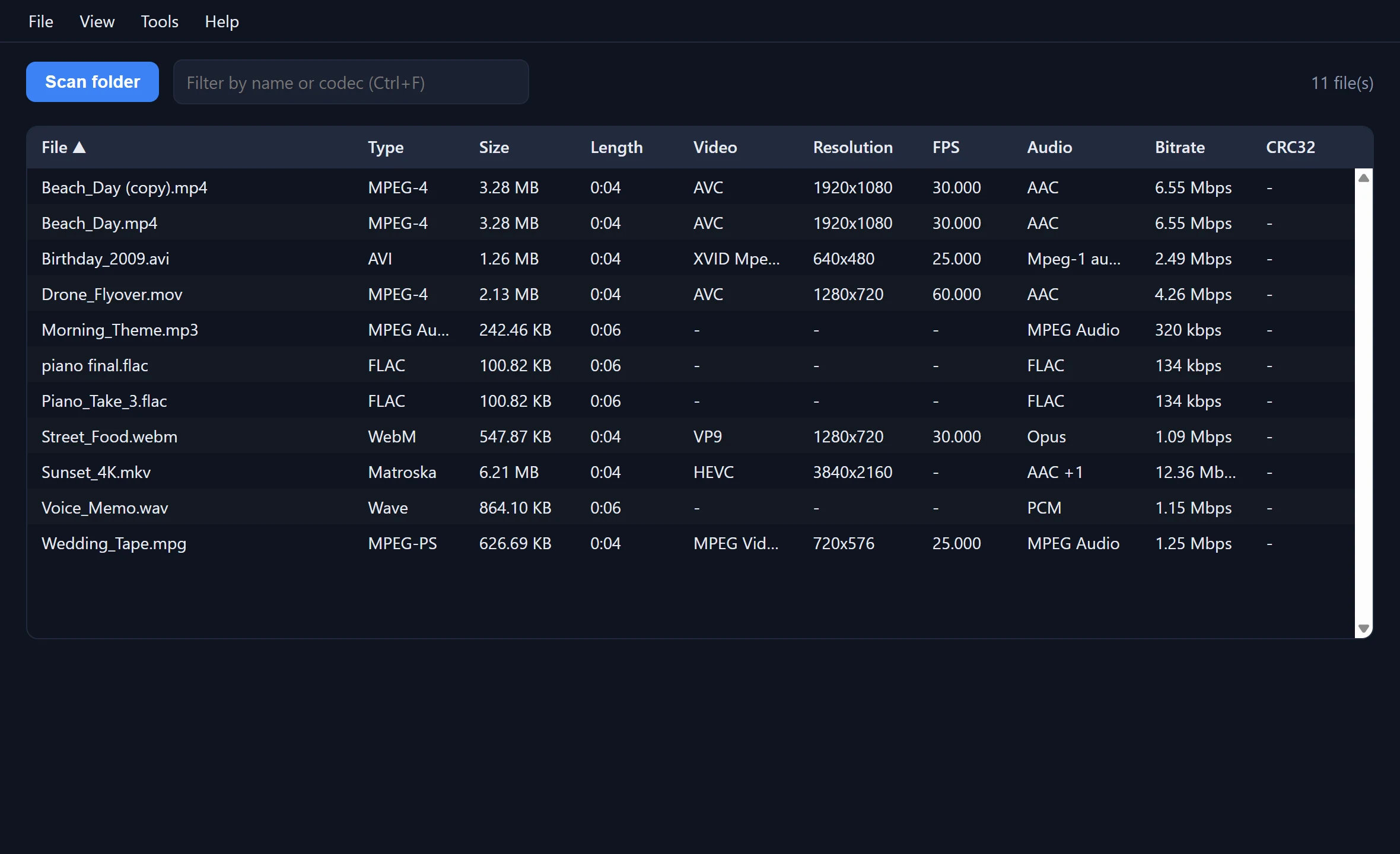
Each file gets a row, with these columns:
- File, Size and Length.
- Type: the container, like Matroska or MPEG-4.
- Video codec, Resolution and FPS.
- Audio codec. A file with several audio tracks shows the first one plus a count, like AAC +1.
- Overall Bitrate.
Click a column title to sort by it. View › Columns shows or hides columns. With View › Auto-fit columns turned off, drag a column's edge to resize it.
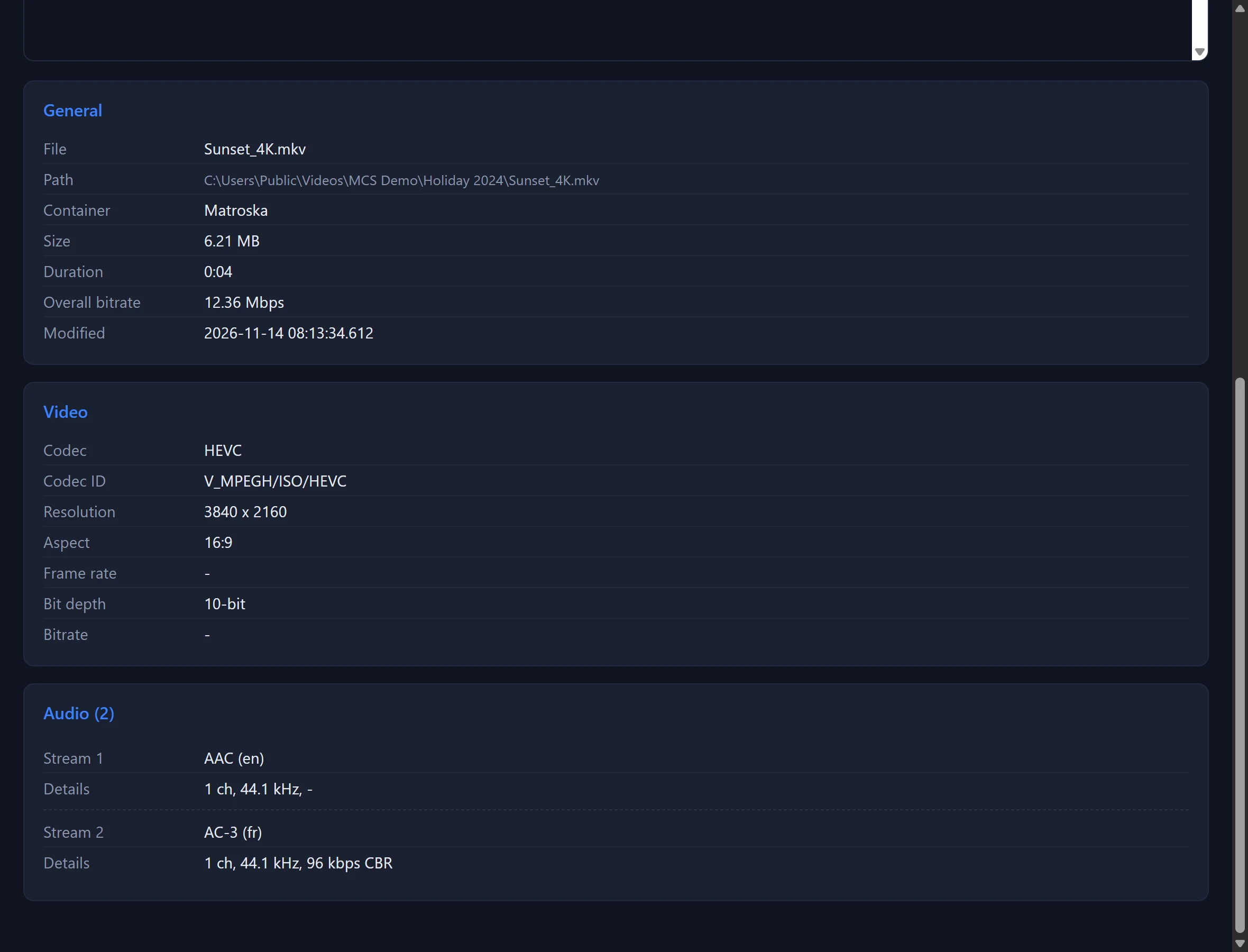
Click a row to see everything below the list: the container, size, length and modified date; the video codec and codec ID, resolution, aspect ratio, frame rate, bit depth, HDR format and bitrate; every audio stream with its language, channels and sample rate; and every subtitle track.
For classic AVI, WMV and WAV files, Media Codec Scanner also shows the codec's familiar name from the original AVIcodec database.
The How to play card at the end of the details says what helps when a file won't play in Windows' own players. It names the Microsoft Store extension that adds the file's codec to Windows: HEVC, AV1, VP9, MPEG-2, or Web Media Extensions for Theora and Vorbis. It also links to VLC, a free player that plays almost every format, and notes that Windows 11 24H2 and later no longer include Dolby Digital (AC-3) audio.
4. Filter the list
Type in the box next to Scan folder (or press Ctrl + F) to show only matching rows. It matches the file name, the container and the video and audio codecs, so hevc lists every HEVC video and flac every FLAC file.

The count on the right shows how many files match, like 12 of 640 file(s). Press Esc in the box to clear it.
Above the list, a line counts the files for each video and audio codec, most common first, like AVC 412 or AAC 380. Click a codec to show only the files that hold it, and click it again to show them all. It works together with the filter box.
5. Find duplicates
Tools › Find duplicates finds files that are identical copies, matched by their contents, not their names. Only files that share a size with another file can be copies, so only those are read in full. That keeps the check quick even on large folders.
Copies are matched by size and a CRC32 checksum of the whole file. The checksum shows in the CRC32 column afterwards. A progress bar shows the files being read, and Cancel stops it straight away.
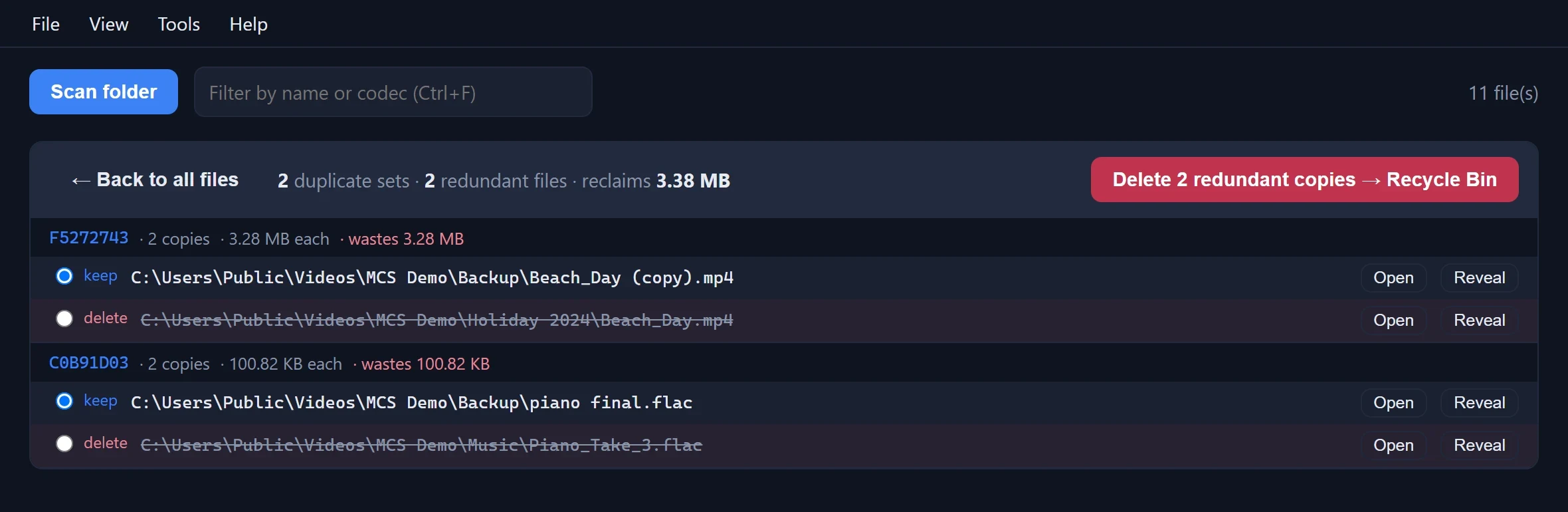
Each set of copies lists every path. Choose the copy to keep, then send the rest to the Recycle Bin. Nothing is deleted outright, so you can restore any of it. Back to all files returns to the full list.
6. Open, rename and delete
Double-click a row, or press Enter, to open the file in your default player. In Options you can make double-click show the file in Explorer, or just show its details, instead.
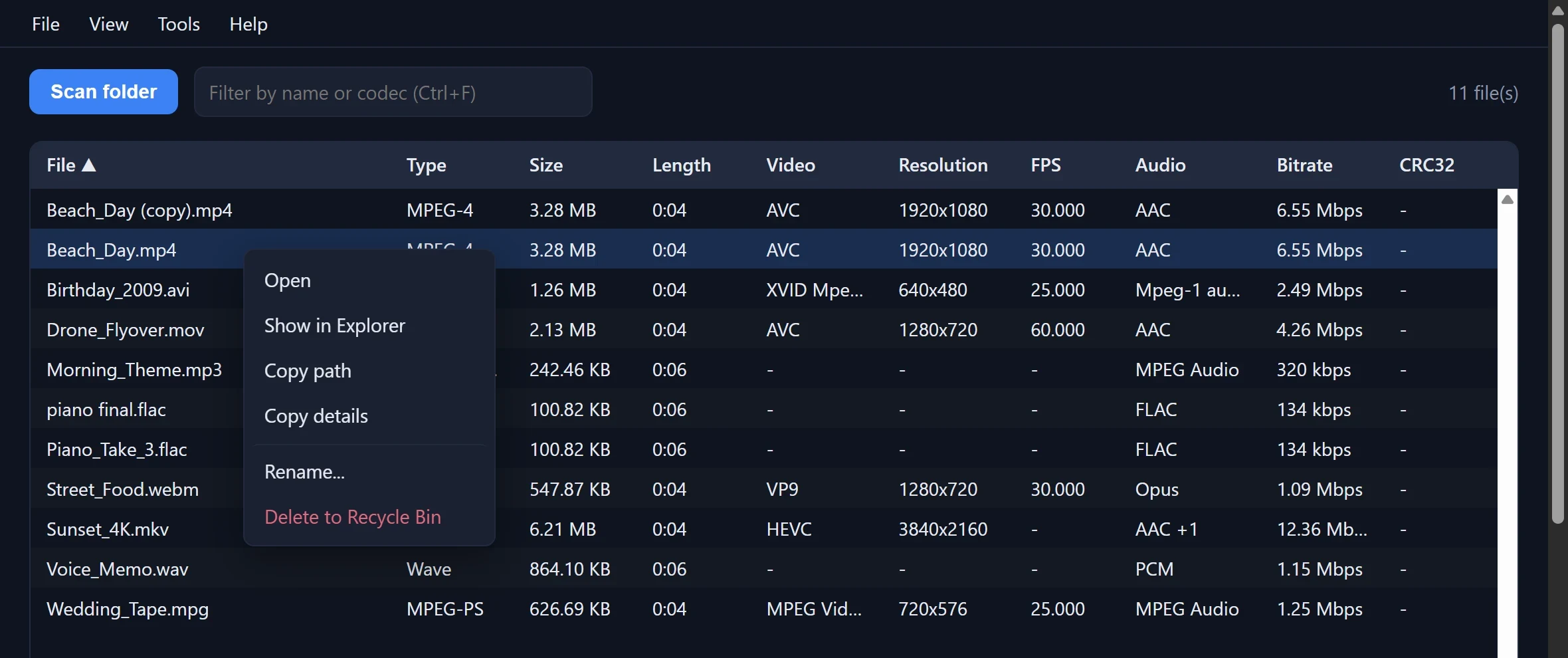
Right-click a row for:
- Open and Show in Explorer.
- Copy path, and Copy details: a plain-text summary of every stream.
- Copy CRC32, after a duplicate check.
- Rename…, which changes the file on disk, in its own folder.
- Delete to Recycle Bin, which always asks first.
7. Export to CSV or JSON
File › Export CSV… saves the columns you see, in their current order, as a spreadsheet file that opens in Excel. Export JSON… saves every detail of every file, including all streams.
Both export the rows in the list right now, so a filter you've typed narrows the export too.
8. Options
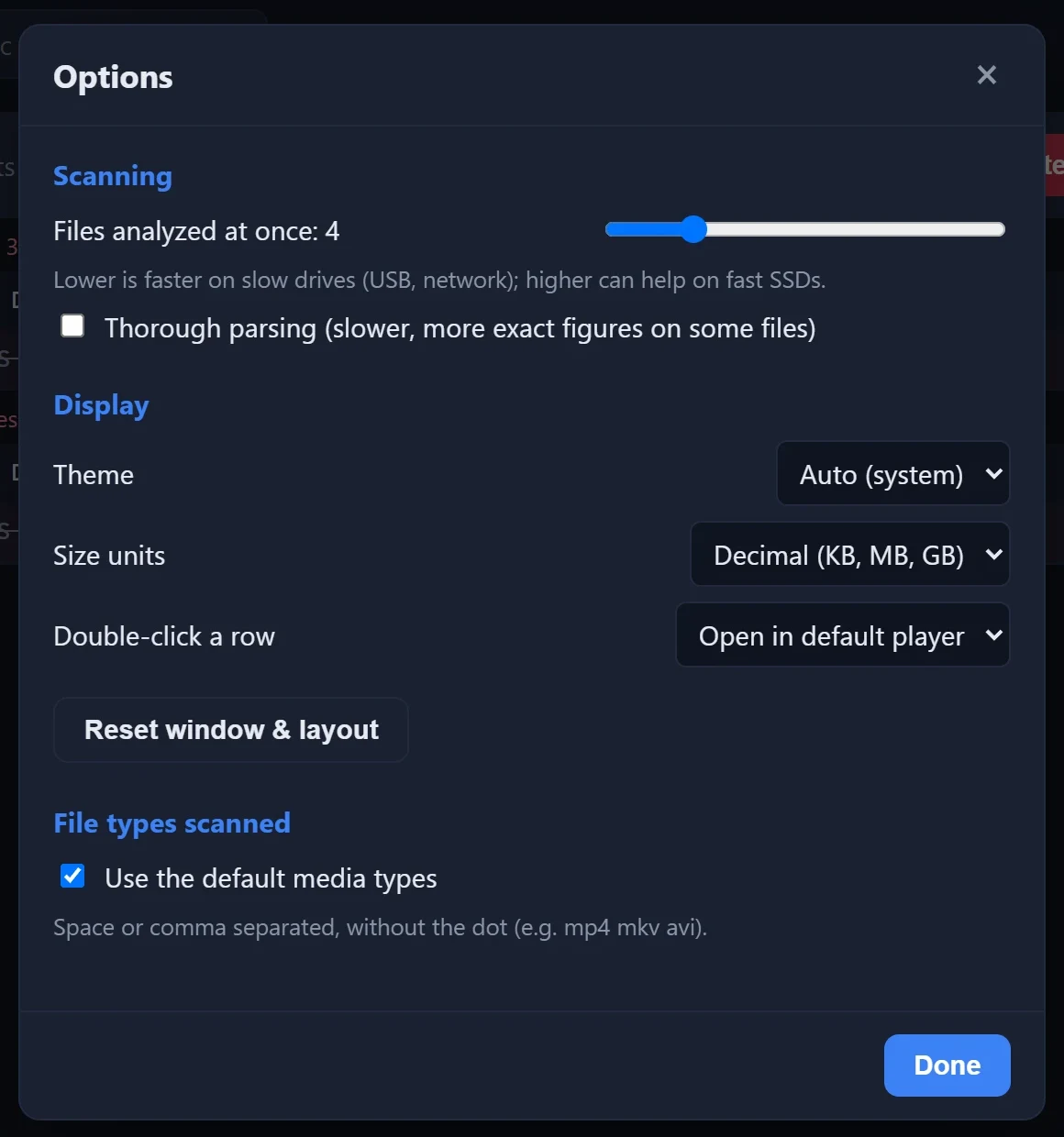
Open Tools › Options… (Ctrl + ,). In it:
- Files analyzed at once: how many files are read at the same time, from 1 to 16 (default 4). Lower is faster on slow drives such as USB sticks and network shares; higher can help on fast SSDs. It applies to duplicate checks too.
- Thorough parsing: reads deeper into each file for more exact figures on some files. Scans take longer with it on.
- The theme (also under View), size units (KB or KiB), and what double-click does.
- Reset window and layout.
- The file types a folder scan includes.
9. Keyboard and mouse
| Ctrl + O | Scan a folder. |
| F5 | Scan the same files or folders again. |
| Ctrl + F | Jump to the filter box. |
| ↑ / ↓ | Move up or down the list. |
| Home / End | Jump to the first or last file. |
| Enter | Open the file, or do what you set for double-click in Options. |
| F2 | Rename the file. |
| Delete | Send the file to the Recycle Bin. Media Codec Scanner asks first. |
| Ctrl + C | Copy the file's full path. |
| Ctrl + , | Open Options. |
| F1 | Show the help window inside the app. |
Mouse
| Drag files or folders onto the window | Scan them. |
| Click a row | Show its details below the list. |
| Double-click a row | Open it in your default player (you can change this in Options). |
| Right-click a row | Open, show in Explorer, copy the path, details or CRC32, rename or delete. |
| Click a column title | Sort by it. Click again to reverse. |
| Click a codec above the list | Show only files with that codec. Click again to show all. |
Keys do nothing while you're typing in a box or a window is open.
10. Updates and privacy
When it starts, Media Codec Scanner asks billkishonti.com for the latest version number. If a newer one exists, an Update available button appears in the toolbar. Help › Check for updates checks on demand.
Nothing about you or your files is sent or stored. Scanning happens entirely on your PC. Help › About Media Codec Scanner shows your version and the credits.
11. Troubleshooting
Windows warns about the installer. Media Codec Scanner isn't code-signed yet (see Install). Choose Keep, then More info and Run anyway. The download page lists a SHA-256 checksum if you want to check the file first.
A video plays sound but no picture. Your player can't decode its video codec. Click its row and look at the How to play card at the end of the details (see Read the results). It names the Microsoft Store extension that adds the codec to Windows, or try VLC, a free player that plays almost every format.
A folder scan skips some files. Only the file types in Options are analyzed in a folder. Add the extension there, or drop the file onto the window: a file you drop is always analyzed.
A scan of a USB stick or network drive is slow. Lower Files analyzed at once in Options.
A figure looks wrong for one file. Turn on Thorough parsing in Options and press F5 to scan again.
How do I update? Click Update available in the toolbar, or Help › Check for updates, and run the new installer (see Updates and privacy).
Next time a file won't play, you'll see what's inside it in seconds.